The four iPhone settings every real-estate agent should change before the next listing shoot
Out of the box, your iPhone is set up to take pictures of your kids. These four settings turn it into a competent listing-photo tool in under three minutes.
A recent iPhone is a genuinely capable listing-photo camera. The sensor is good, the lens is sharp, the colour science is reliable. The only reason it doesn’t produce listing-grade photos straight out of the box is that the default settings are tuned for the average user — snapshots of dinner, family photos, the dog — not for shooting interiors that need to perform on Zillow.
Three minutes of setting changes turn the same iPhone into a tool that produces MLS-grade work.
The photos are the listing’s most-watched marketing asset. The agent shooting them on a phone — and most agents now do, at least for supplementary or off-cycle work — needs the phone configured correctly. This article covers the four critical settings to change, the three additional housekeeping settings worth checking, and the three accessories under $40 that punch above their weight.
Setting 1 — Grid lines on
Where: Settings → Camera → Composition → Grid (toggle on)
The grid overlays a 3×3 rule-of-thirds grid on the camera viewfinder. It does two jobs for listing photography:
- It tells you when your verticals aren’t vertical. The most common amateur tell in interior photos is a tilted vertical — doorframes, cabinets, the edge of the fridge — that should be straight up-and-down but is slightly off.
- It tells you when your horizon isn’t level. For exterior shots especially, a tilted horizon is the difference between a professional photo and a snapshot.
The grid is free. It costs nothing in time or attention. The only reason it’s not on by default is that Apple doesn’t want to confuse new users. You’re not a new user.
Setting 2 — Tap to focus, then tap and hold to lock exposure
Where: No settings change needed — this is a gesture, used in the moment you take the shot.
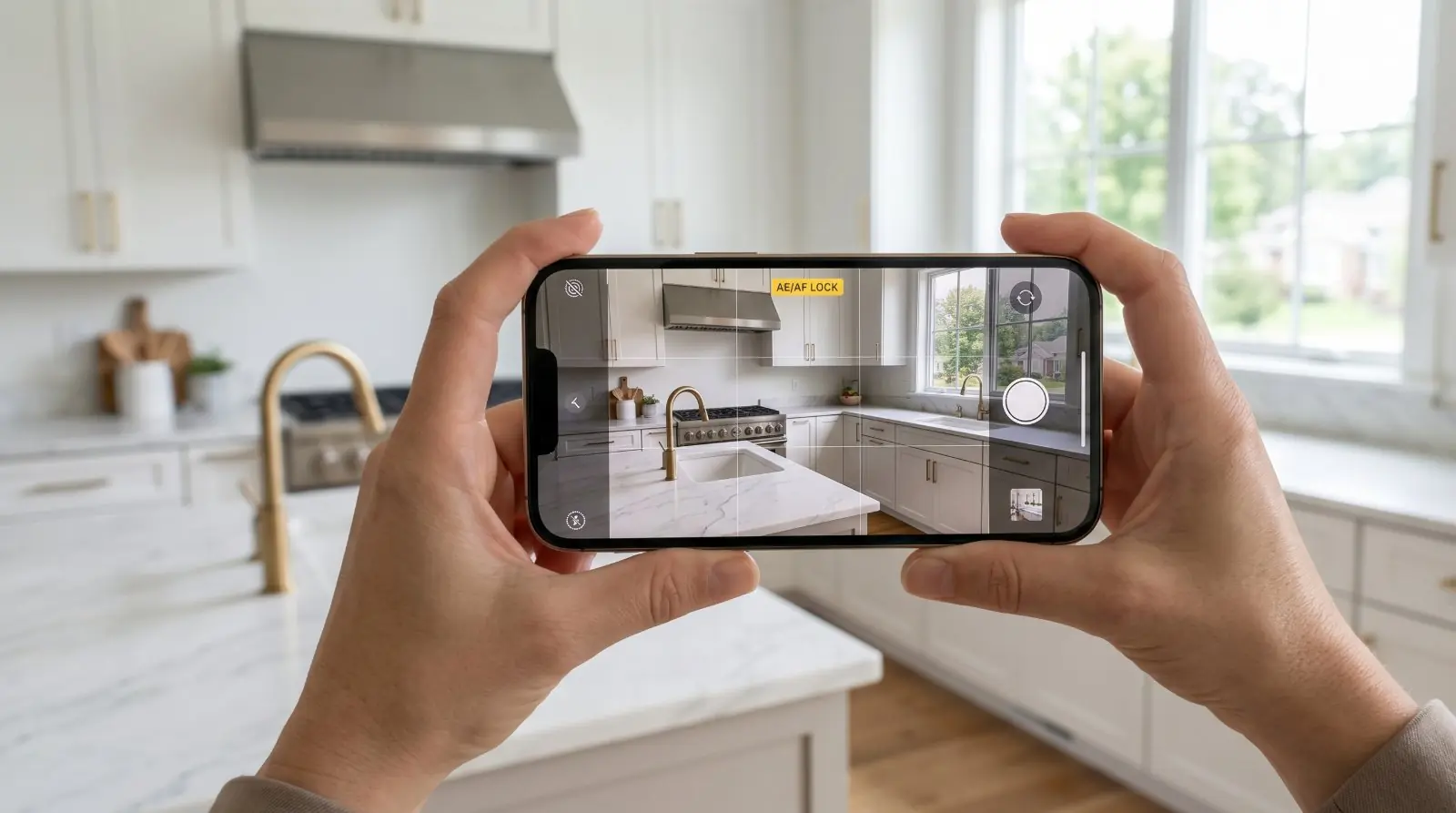
The single most important camera technique in interior real-estate photography. To execute on iPhone:
- Open the camera.
- Frame the shot.
- Tap and hold on the brightest part of the frame — usually the window or the brightest counter directly lit by it.
- A yellow box with AE/AF LOCK appears at the top of the screen.
- Recompose if needed and shoot.
- Tap once on the screen to release the lock when done.
Why it matters: the iPhone’s auto-exposure is designed to average the brightness across the whole frame. In a room with a bright window and a dark interior — which is every interior room — auto-exposure either blows out the window or crushes the interior, depending on which surface dominates the frame. Locking the exposure to the brightest area forces the camera to preserve window detail, and the interior light you turned on fills in the shadows.
Without this setting, no amount of staging or composition will save the photo from looking flat. With it, even a quick walk-through-and-shoot produces usable interior photos.
Setting 3 — HDR set to Auto, not Always-On
Where: Settings → Camera → Smart HDR (toggle on, but also turn on “View Outside the Frame” while you’re in the menu).
HDR (High Dynamic Range) is a camera mode that captures multiple exposures and combines them into one image with detail in both highlights and shadows. For listing photos, it’s almost always helpful — the room has bright windows and dark corners, exactly the conditions HDR handles best.
The default on most recent iPhones is “Smart HDR” set to Auto. Leave it on Auto. Don’t set it to Always-On (which can cause overprocessing in scenes that don’t need it) and don’t turn it off entirely.
The one tweak: turn on “View Outside the Frame” while you’re in the same menu. This shows you a slightly wider view than the camera will capture, so you can see what’s about to enter or leave the frame as you compose.
Setting 4 — Default to 1×. Ultra-wide is a problem-solver, not a default.
Where: The lens selector buttons in the camera app — typically labelled 0.5×, 1×, 2× or 3× depending on your iPhone model.
The rule: 1× is the default for nearly every listing photo. The 0.5× ultra-wide lens is a problem-solver for genuine space constraints — not a tool for making rooms look bigger.
Phone ultra-wide lenses introduce visible distortion at the edges: vertical lines bow outward (cabinets, doorframes, the edges of the room stretch), tall structures lean back, ceiling lines curve. Rooms photographed at 0.5× read as larger than they actually are — and the buyer’s in-person experience doesn’t match the photo. That mismatch is the kind of small disappointment that erodes trust across the entire listing.
The principle, consistent across every article in this guide: showing more of the room with distortion is worse than showing less of it accurately. The room photographs honestly at 1×, even if you have to step back further than feels natural or accept tighter framing.
Three more housekeeping settings worth checking
The four settings above are the ones that change how the camera captures. There are three more worth checking — all in the same Camera settings menu — that determine whether the resulting file is MLS-ready or has artefacts that complicate upload, colour bias that misrepresents finishes, or orientation problems that crop badly on listing displays.
Before getting into those, a piece of context worth knowing about the hardware you’re shooting with:
The hardware is genuinely capable. Make sure the settings aren’t fighting it.
Setting 5 — Live Photo: OFF
Where: In the Camera app, the small Live Photo indicator (a circle of dots) at the top of the screen. Tap to toggle. Make it stick: Settings → Camera → Preserve Settings → Live Photo: ON (turning Preserve Settings ON for Live Photo means the camera remembers your last choice).
Live Photos save a 1.5-second video clip alongside each still. They’re useful for personal photography and a real problem for MLS work. Moving-file artefacts complicate export, file sizes balloon, and some MLS upload tools treat the Live Photo as the primary file (uploading the wrong frame as the listing photo). Turn it off before any listing shoot.
Setting 6 — Photographic Styles: Standard (or your brokerage’s neutral preset)
Where: In the Camera app, the small Photographic Styles indicator (top of viewfinder on iPhone 13 and newer, or in the camera-mode strip on iPhone 16+). Default should be Standard.
Recent iPhones let you set a Photographic Style — Vibrant, Rich Contrast, Warm, Cool, etc. — that bakes into the captured file. If your iPhone is set to “Warm,” every kitchen photograph will lean orange. If it’s set to “Rich Contrast,” every bathroom will read with crushed shadows. The bake-in cannot be reliably reversed in post.
For MLS work, set to Standard (the neutral default) and leave it there. The accurate colour representation is more valuable than any aesthetic mood the alternative styles offer.
Setting 7 — Aspect ratio: 4:3 horizontal
Where: In the Camera app, the aspect-ratio indicator at the top of the viewfinder (usually shows “4:3” or “16:9”). Tap to switch.
Use 4:3. The iPhone sensor’s native aspect ratio is 4:3 — it captures more pixels per frame than 16:9, which crops top and bottom away. For MLS displays, 4:3 also crops more reliably across portals; 16:9 frequently gets unhelpful auto-crops on the Zillow and Realtor.com gallery views.
And shoot horizontal/landscape orientation, not vertical/portrait. Vertical photos crop badly on every major listing portal. Portrait orientation is for Instagram Reels, not for MLS galleries.
A brief note on iPhone model
For an article called “The four iPhone settings every real estate agent should change” it’s worth being honest about which iPhones can clear the MLS bar with the right technique:
- — iPhone 13 or newer: The realistic minimum for serious listing work. Sensor-shift stabilisation on the main camera helps with hand-held interior shots in lower light.
- — iPhone 15 or newer (standard models): A meaningful upgrade — these are the first non-Pro models with 48MP main cameras. The extra resolution gives you cropping flexibility and detail headroom that older models don’t.
- — iPhone 14 Pro or newer (any Pro model): Add Apple ProRAW for the high-dynamic-range scenarios where a phone’s automatic processing limits you. ProRAW is the most useful Pro-only feature for real-estate work.
- — iPhone 12 or older: Workable for rentals, off-cycle photos, or quick supplementary shots in good light. Not what you’d choose for a primary MLS shoot if you have a newer phone available.
A note on AI features
Recent iOS versions include AI cleanup, generative edits, and other AI-assisted photo tools accessible from the Photos app. These can be useful — but for listing photos, they cross directly into the disclosure rules that govern AI-altered real-estate images.
Don’t use AI cleanup to remove defects, change permanent property features, alter views, or modify anything material about the property. For the everyday brightness, white-balance, and exposure adjustments that the iPhone’s standard editing offers — those are routine post-processing and don’t require disclosure. The line is whether the edit changes what the property is.
Three accessories worth their weight
1. A $30 mini-tripod
A small phone-mount tripod (search “iPhone tripod under $30” — JOBY GorillaPod Mobile and similar) does two things: locks your phone at chest height consistently, shoot after shoot; lets you take low-light shots without hand-shake. A $30 tripod earns its cost back in the first listing where you needed to shoot a dim interior and couldn’t have without it.
2. A microfibre lens cloth
The single most common cause of soft, low-detail listing photos isn’t the camera — it’s a smudged lens. Phones live in pockets, against faces, in hands. Keep a microfibre cloth (the kind sold for eyeglasses) in your listing bag. Wipe the lens before every shoot. This costs $2. Skip it and 30% of your photos will be subtly soft for no reason.
3. A small white reflector or pillowcase
For dim corners, dark bathrooms, or any small space where one side is much brighter than the other, holding a white reflector (or any white fabric — a pillowcase will work) opposite the bright side bounces light into the shadow. A photographer’s reflector is $20. A clean white pillowcase from a closet is free. Both work.
The Android / Pixel equivalents
The principles transfer. The gestures differ slightly.
Phone photos to market-ready listing images. 10 seconds per shot.
Phone photos to market-ready listing images in 10 seconds. Twenty free when you sign up — no credit card.
One photo tip every Sunday.
Real techniques agents are using this week. No spam. Unsubscribe in one click.