The four iPhone settings every agent should change — and why
Two minutes in Settings covers the failure modes behind the worst phone-shot listing photos: tilted verticals, format trouble, soft stills, over-processed HDR.
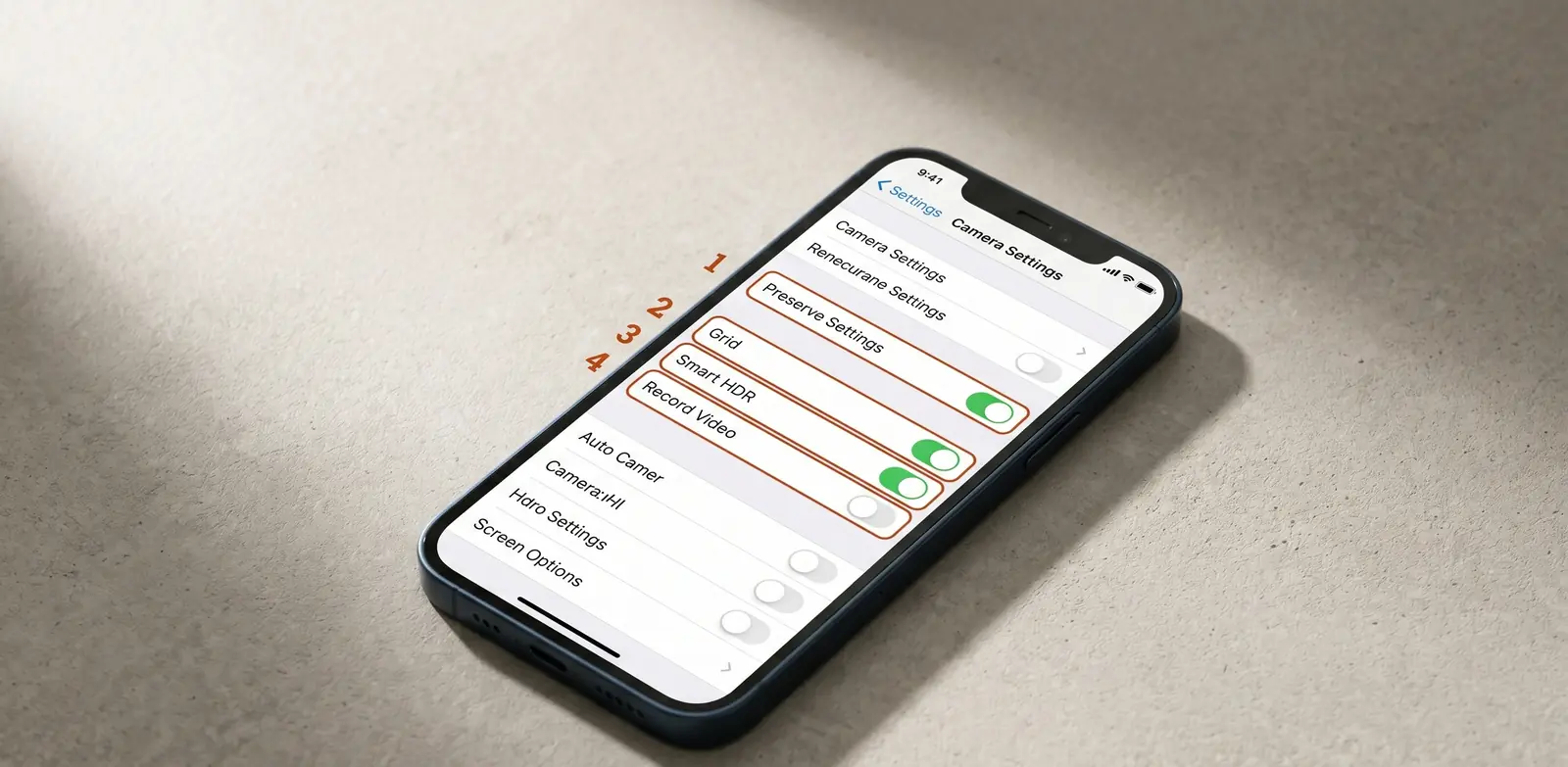
The iPhone ships with sensible defaults for most users. For listing photos, two or three of those defaults work against you. The fix takes about 90 seconds in Settings and saves you the re-shoot.
Here are the four to change before your next listing.
1. Turn on the camera grid
Settings → Camera → Grid → ON
The grid overlays a 3×3 set of lines on the camera viewfinder. You use them for two things: keeping vertical lines straight (the most common phone-photo failure on listings) and applying the rule-of-thirds composition that pulls the eye into a room rather than onto a single wall.
A tilted vertical is the single fastest tell that a listing photo was shot in a hurry. The grid fixes it before you tap the shutter, not in post.
Cost of the change: zero. Number of agents who already have this turned on: roughly half. The other half are the half whose photos lean.
2. Set the format to Most Compatible, not High Efficiency
Settings → Camera → Formats → Most Compatible
By default, modern iPhones save photos in HEIF/HEIC format. It is more efficient. It is also a format your MLS may reject and your seller may not be able to open on their Windows laptop or their email client.
Switching to Most Compatible saves photos as standard JPEG, which every MLS, every email client, every Dropbox preview, and every printer in the country can read. The file is slightly larger. You will not notice the difference. Your transaction coordinator will.
If you shoot in HEIC and need to ship JPEGs anyway, you will end up converting in post, which costs more time than you saved on storage.
3. Turn off Live Photos for listing shoots
In the Camera app: tap the Live Photos icon (the concentric circles) → OFF
Live Photos record a short video clip alongside the still image. It eats storage. More importantly, it makes the still photo slightly soft because the iPhone is balancing the still with the motion clip — the camera is essentially shooting a video and pulling a frame.
For a listing shoot, you want a single sharp still per tap. Turn Live off before the first shot. The icon stays off until you toggle it back, so you only need to do this once at the start of a shoot.
4. Turn off “Smart HDR” auto-toggling — or learn its tells
Settings → Camera → Smart HDR → OFF
This one is more nuanced than the others, because Smart HDR is genuinely useful in mixed-light scenes — kitchens with bright windows, exteriors with strong shadow. The problem is that the iPhone decides when to apply HDR, and the version it applies is not always the version that flatters a listing photo.
Two specific failure modes:
- In rooms with strong window light, Smart HDR pulls down the exterior brightness so far that the window becomes a flat grey rectangle. A buyer reads that as “no view” or “small window.”
- In rooms with mixed warm and cool light, Smart HDR can shift the white balance mid-frame, giving you a kitchen where the left side reads warmer than the right.
Two ways to handle it:
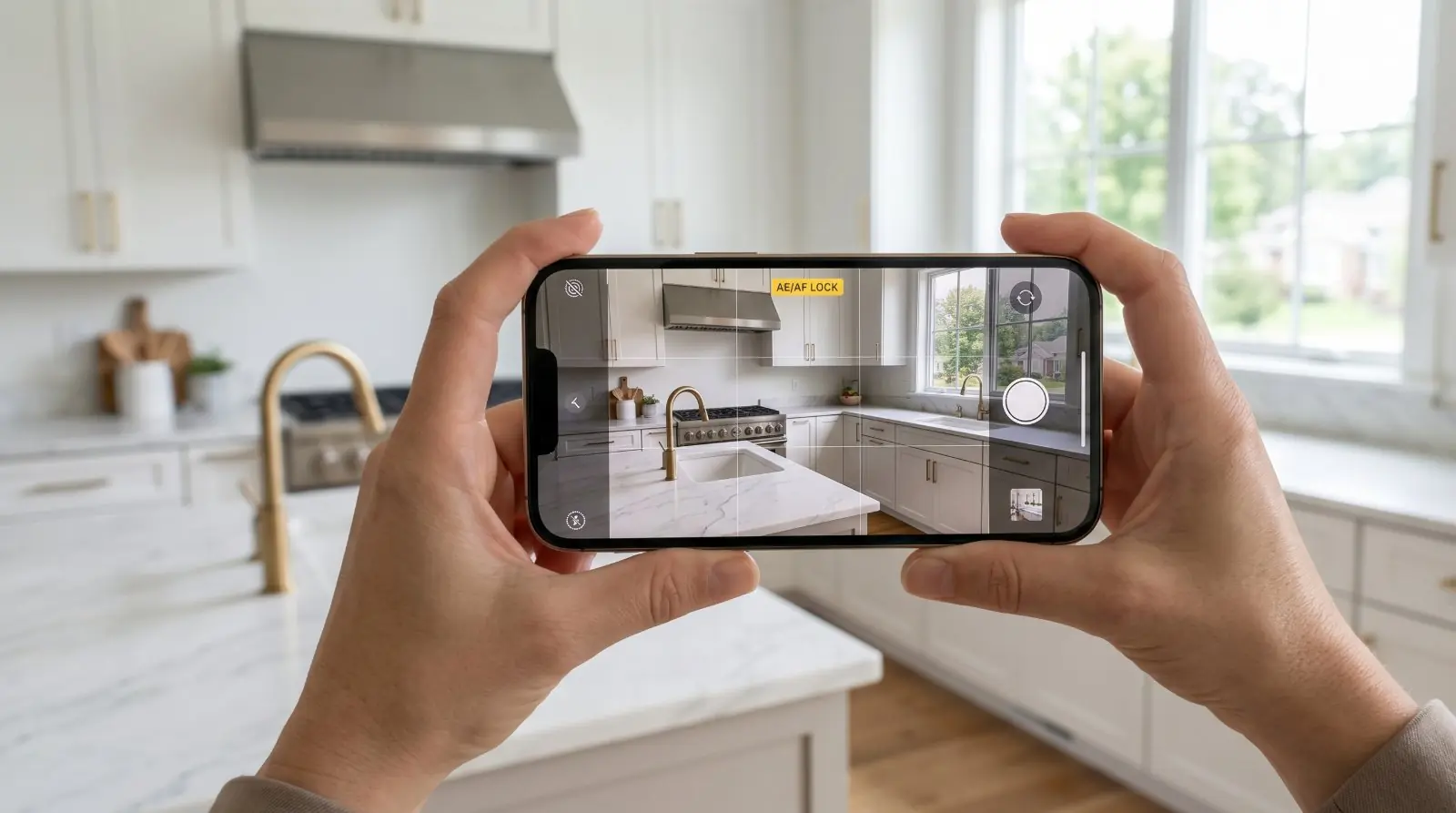
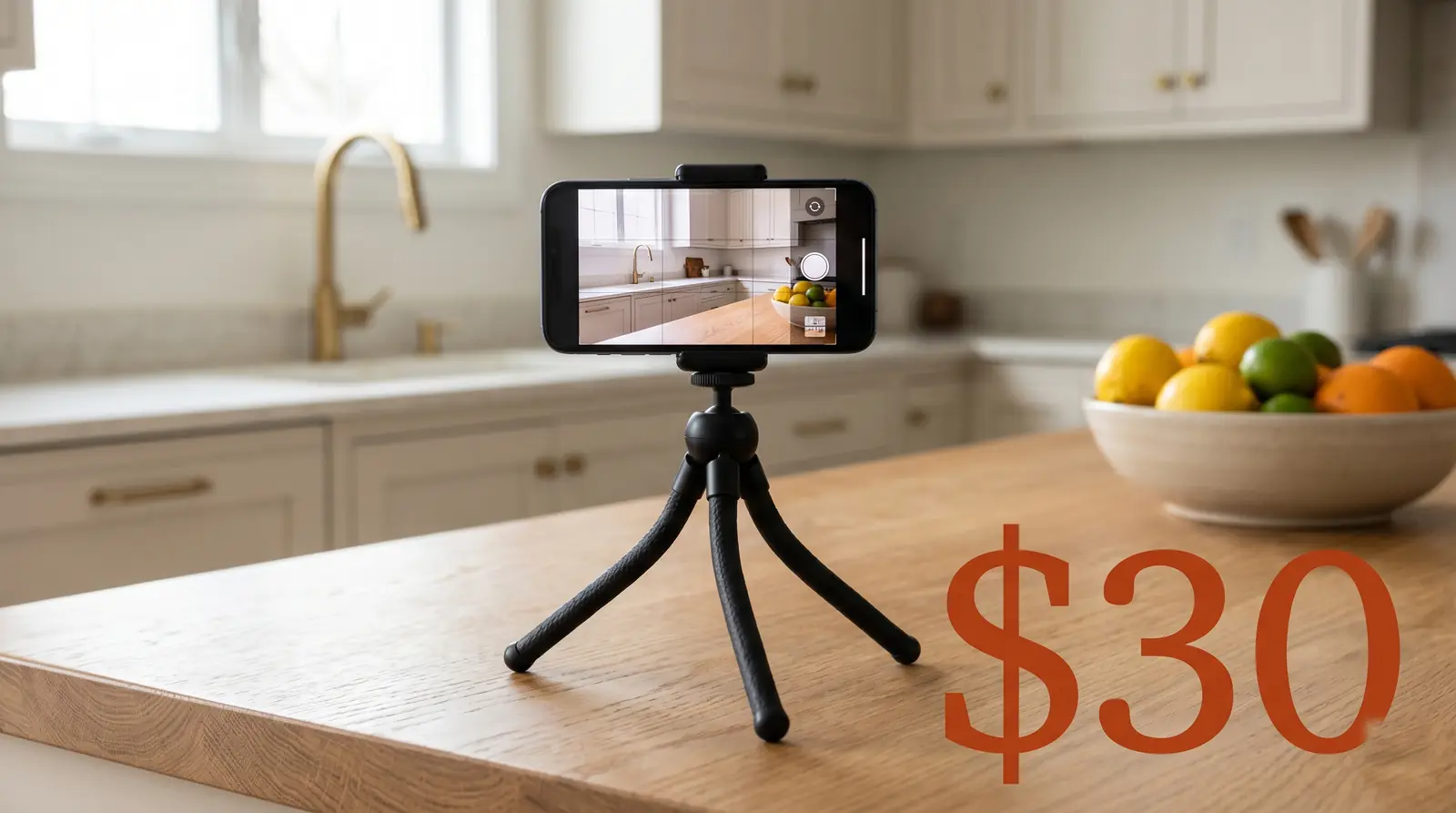
- Off, on a tripod, exposure-locked. Tap to focus, then tap-and-hold on the exposure point to lock it (the AE/AF LOCK banner appears). Slide the exposure slider until the room is balanced. You will get one clean, predictable shot.
- On, but check every photo on the spot. If you keep HDR on for speed, swipe to review each shot before you move the tripod. The bad HDR shots are obvious — they look slightly cartoonish, with too-bright shadows.
For most agents shooting most listings on a phone, off with manual exposure lock is the more reliable setting.
What it adds up to
Four toggles, less than two minutes in Settings, no upgrade and no learning curve. They cover the three failure modes that produce the worst phone-shot listing photos: tilted verticals, format incompatibility, soft Live-Photo stills, and over-processed HDR.
The short version
Grid on. Format Most Compatible. Live off. Smart HDR off (or watch it carefully). Ninety seconds, done forever. You will not have to think about your camera settings again until your next phone.
Four toggles. Two minutes. Then the camera is ready.
Phone photos to market-ready listing images in 10 seconds. Twenty free when you sign up — no credit card.
One photo tip every Sunday.
Real techniques agents are using this week. No spam. Unsubscribe in one click.